Onboarding
Our onboarding walks you through some of the core features of Claire.
Last updated About 1 year ago
Public Beta v0.1 as of September 2025
View a submission
Inside your Todo inbox, you will find a demo assignment. You open it by simply clicking on it.
Learn more about your inbox here: Introducing the Inbox
This is a Block
Claire chunks long-form text into paragraphs, so-called "Blocks". This makes it easier for you to navigate and add annotations to the text faster.
On the left side of a Block, you can find a focus bar (in blue). The focus bar indicates which Block you’ve selected and where your annotations will appear once you add them.
Use the down arrow key ↓ to jump to or focus on the next Block.
Highlight a Block
As you review the student work, you can annotate Blocks that stand out. This is a great way to highlight the strengths or weaknesses of the student work, and tell Claire what you like (or dislike).
Your highlights (we call them annotations) will later be used in the grading and feedback report to help you determine a suitable grade and draft personalized feedback for each student.
To annotate a Block, press a or d on your keyboard.
We suggest you try our keyboard-first approach first. While this might take some time getting used to, it will save you valuable time later on. You can find all our Keyboard shortcuts here.
Alternatively, you can use your mouse to annotate text. To do so, simply hover over a Block.
Not into reading?
Watch this 2-minute product demo instead.
Add a comment or remark
You can add notes (comments or grading remarks) to provide context for your annotations (e.g., to explain your thinking or criticism). This helps Claire to better understand your intent when analyzing your annotations as you create your grading and feedback report.
👋🏼 Good to know
You can jot down your thoughts as they come. Claire will polish your notes, so you don’t have to worry about phrasing them correctly. Your raw notes will never be visible publicly.
Two types of notes
When press n to add a note, you choose between a Comment or Grading remark.
Commentswill be shown to the student as part of your feedback, but Claire won’t use them inside your grading report. This helps share feedback that isn’t directly grading-relevant.Grading remarksare linked directly to a rubric criterion and classified as either Strength or Weakness and, as such, will be incorporated into the grading report and student feedback.
By default, every note is a Comment. You can link your note to a rubric criterion 1 and add a sentiment 2 in order to transform your Comment into a Grading remark.

This is an AI suggestion
Claire understands your instructions and grading rubric, and analyzes student work to identify Strengths and Weaknesses for you. These AI suggestions are presented inline as well as at the end of a document or each section (e.g., if you split an assignment into exercises).
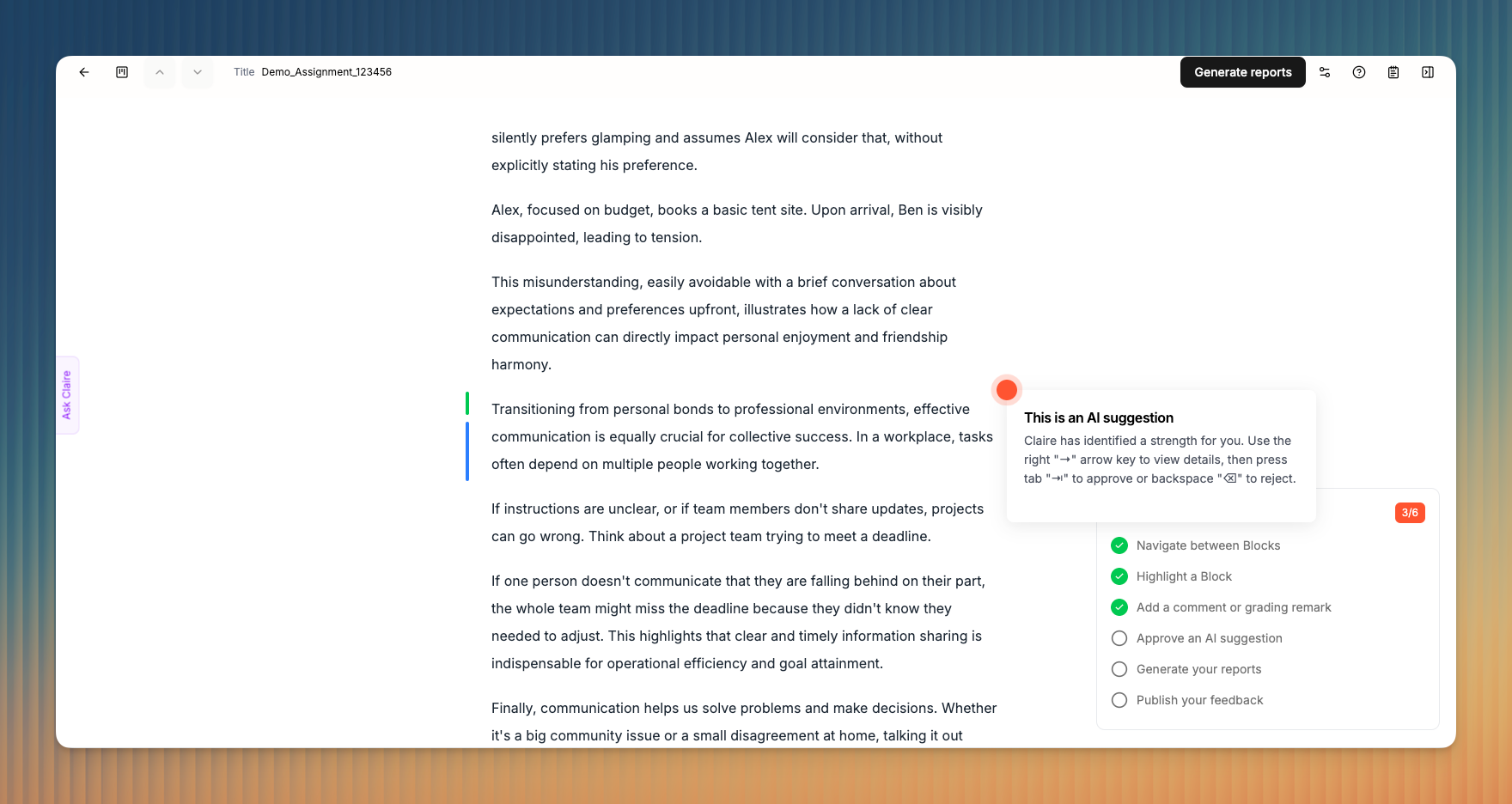
AI suggestions are indicated by a green or red bar on top of the focus bar. You can approve or reject them as you see fit. Once you approve an AI suggestion, it is considered part of your grading remarks, which ensures accountability and compliance with most AI policies.
Discover the rubric view
When you first open a submission in Claire, the submission will be shown in Reading mode. This allows you to review a submission in a way that feels most familiar.
Alternatively, you can also view submissions in the Rubric view, which shows AI suggestions and your own grading remarks grouped by each rubric criterion.
You can access the Rubric view by clicking the views icon 1.
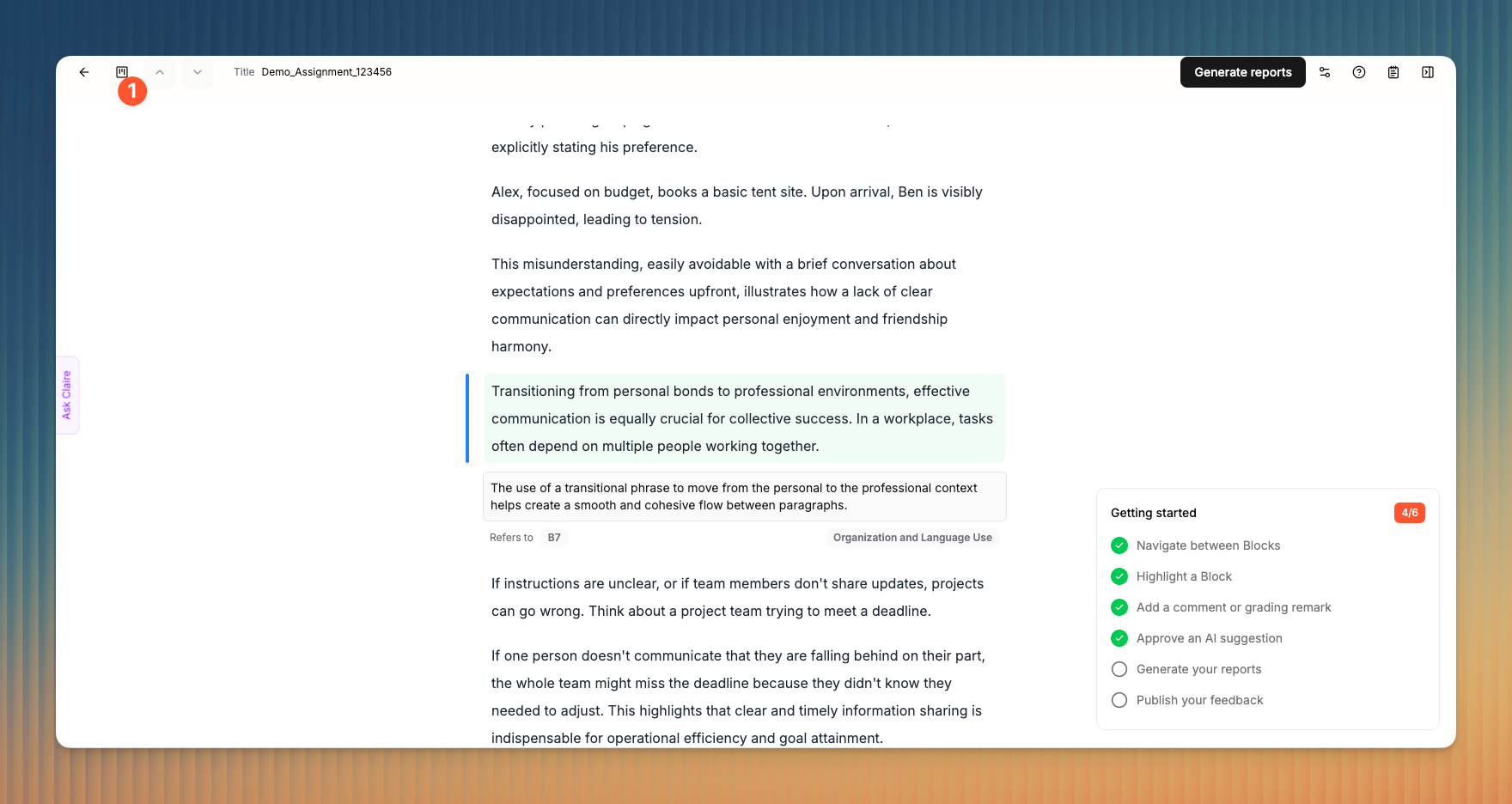
Read more here: View remarks in Rubric view
Generate your reports
Once you have approved (or rejected) all AI suggestions, you can generate your report.
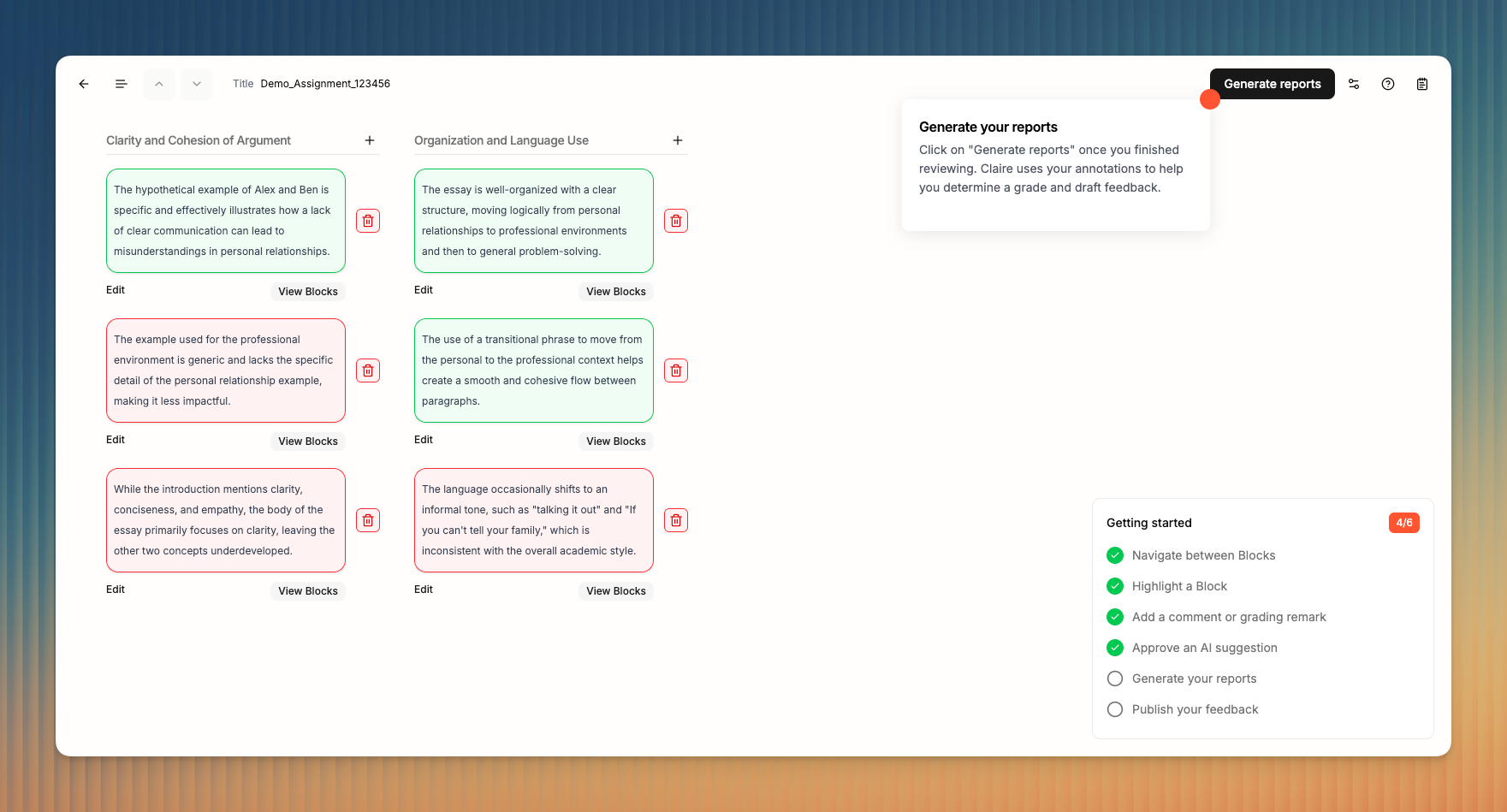
Unlike other AI grading tools that grade for you, our AI provides you with the insights you need to make an informed grading decision. Claire does that by analyzing your annotations and their sentiment and matching them against your grading rubric to identify the most suitable score range for each rubric criterion.
This ensures that your final grade accurately reflects your grading remarks, but also prevents other feedback (e.g., Comments) to bias the grade as they may not actually be grading-relevant but still worth sharing.

Read more here: Using the grading report
Review your feedback draft
Claire transforms your Comments and Grading remarks into extensive feedback that follows best practices and is supported by the latest research in assessment and feedback.

Review the draft and make edits in the editor as you see need. Once you’re happy with your feedback, click Publish feedback in the top navigation bar 1 and publish your feedback 2.
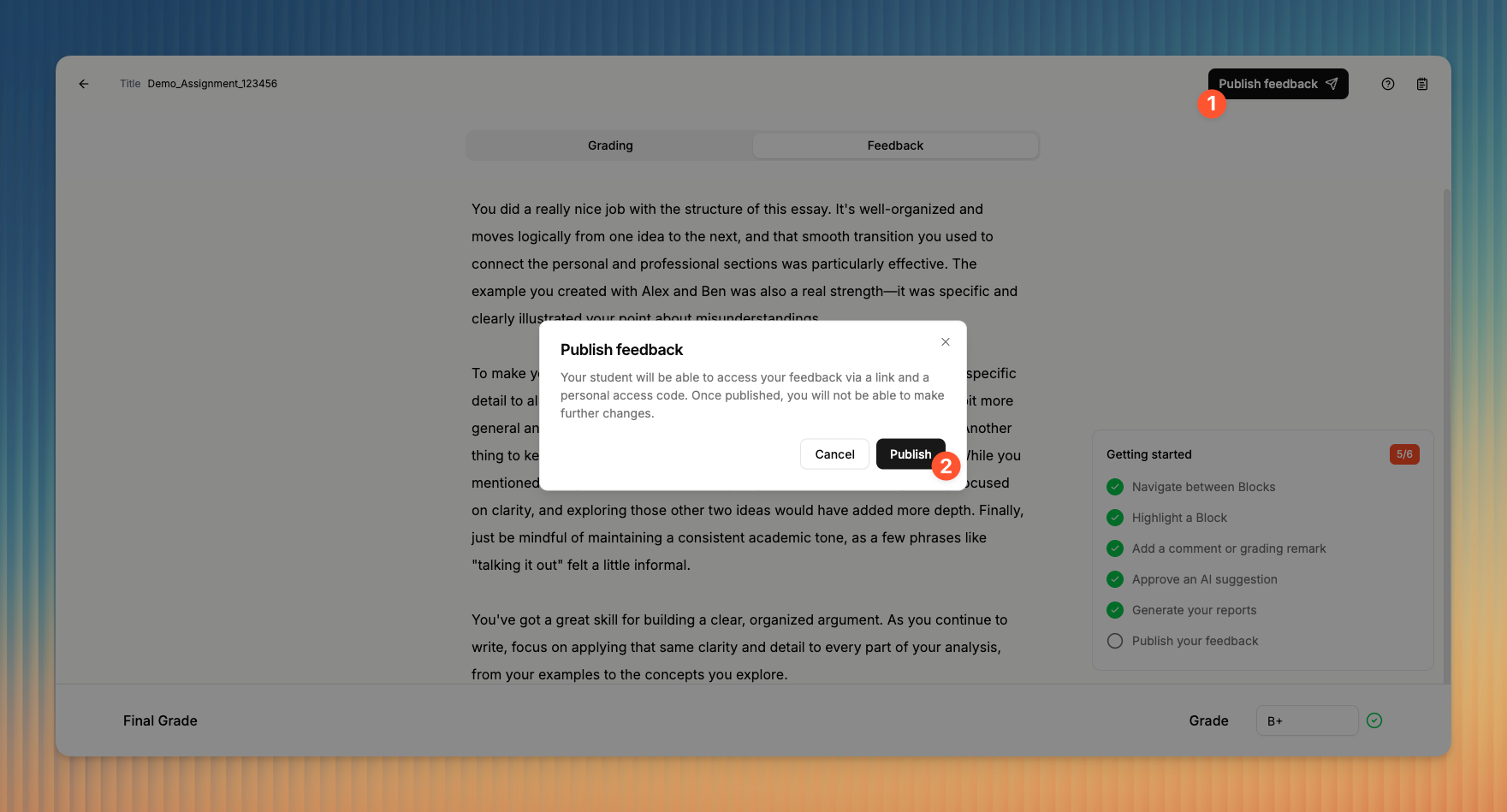
Good to know 👋🏼
You won’t be able to introduce any further changes after publishing your feedback –– it’s just like sending an email.
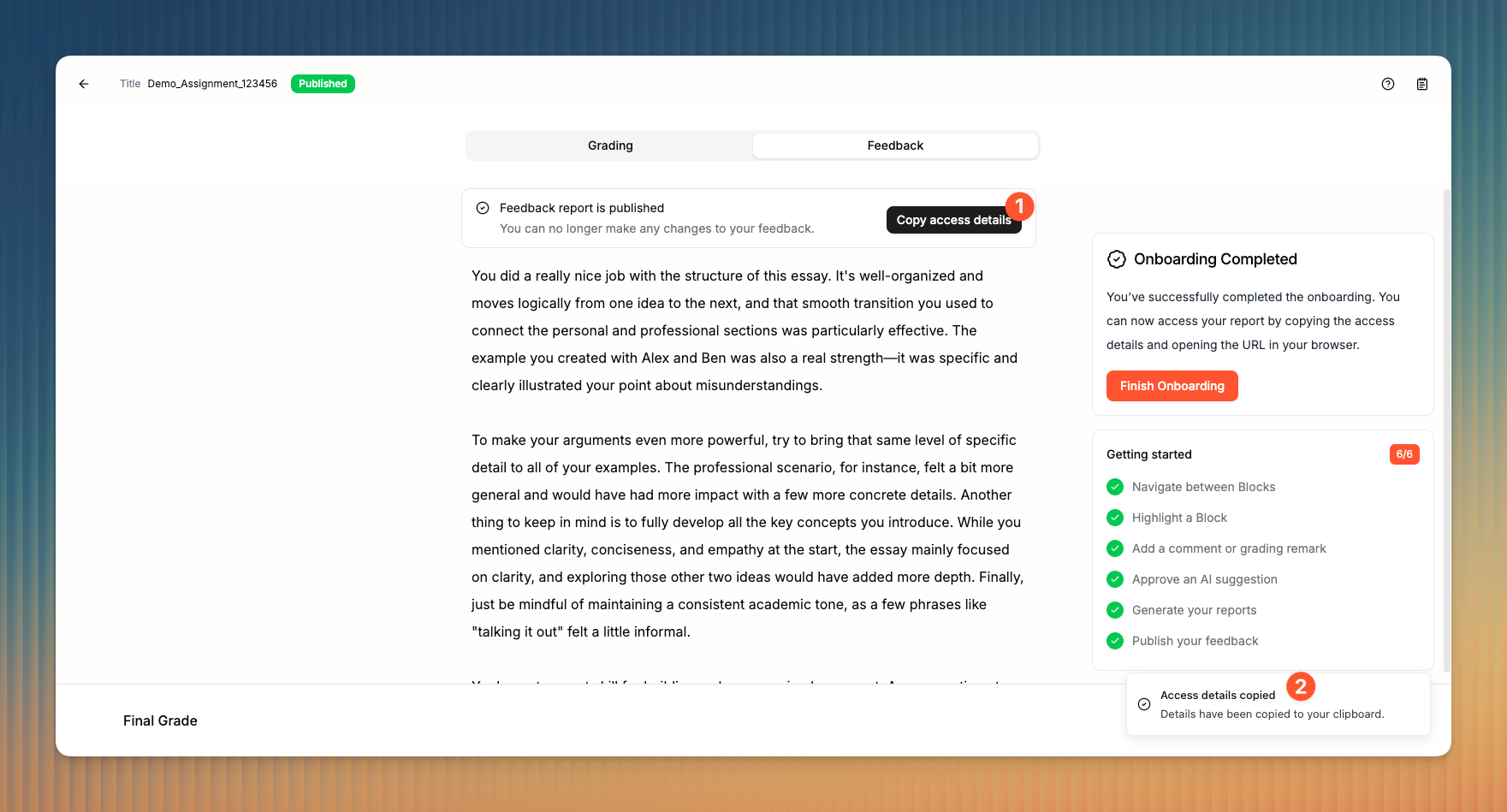
Onboarding complete
Congratulations, you’ve completed the onboarding!
Now that your report is published, you can share it with your student. To do so, simply click the Copy access details button 1 , which will copy the URL (where your feedback is hosted) and a secret access code (to keep your feedback private) to your keyboard 2.
You can easily share them with your student via Moodle, Canva, email, or through any of your preferred student communication channels.
There are still a few features we haven’t introduced just yet, and some are truly exciting such as the ability to Chat with a document. You can learn more about these features in our help center. Below you’ll find an overview of what we left out.
The access details to your feedback report will look like this (example):
Code: xxxxxx
URL: https://feedback.clairelabs.ai?id=xxxxxxxxxx
If you’d like to see a live feedback report sample, visit this URL and use code 536557.
More details about feedback reports here: Understand feedback reports.
Features not introduced during the onboarding
Was this helpful?
Still need help? Ask the team